
Features
Everything Shorthand does.
Nearly everything TextExpander 5 did, rebuilt natively for Apple Silicon, plus tags, a Trash, AI, a privacy blocklist, and encryption.
Expansion
Type the abbreviation. Get the text.
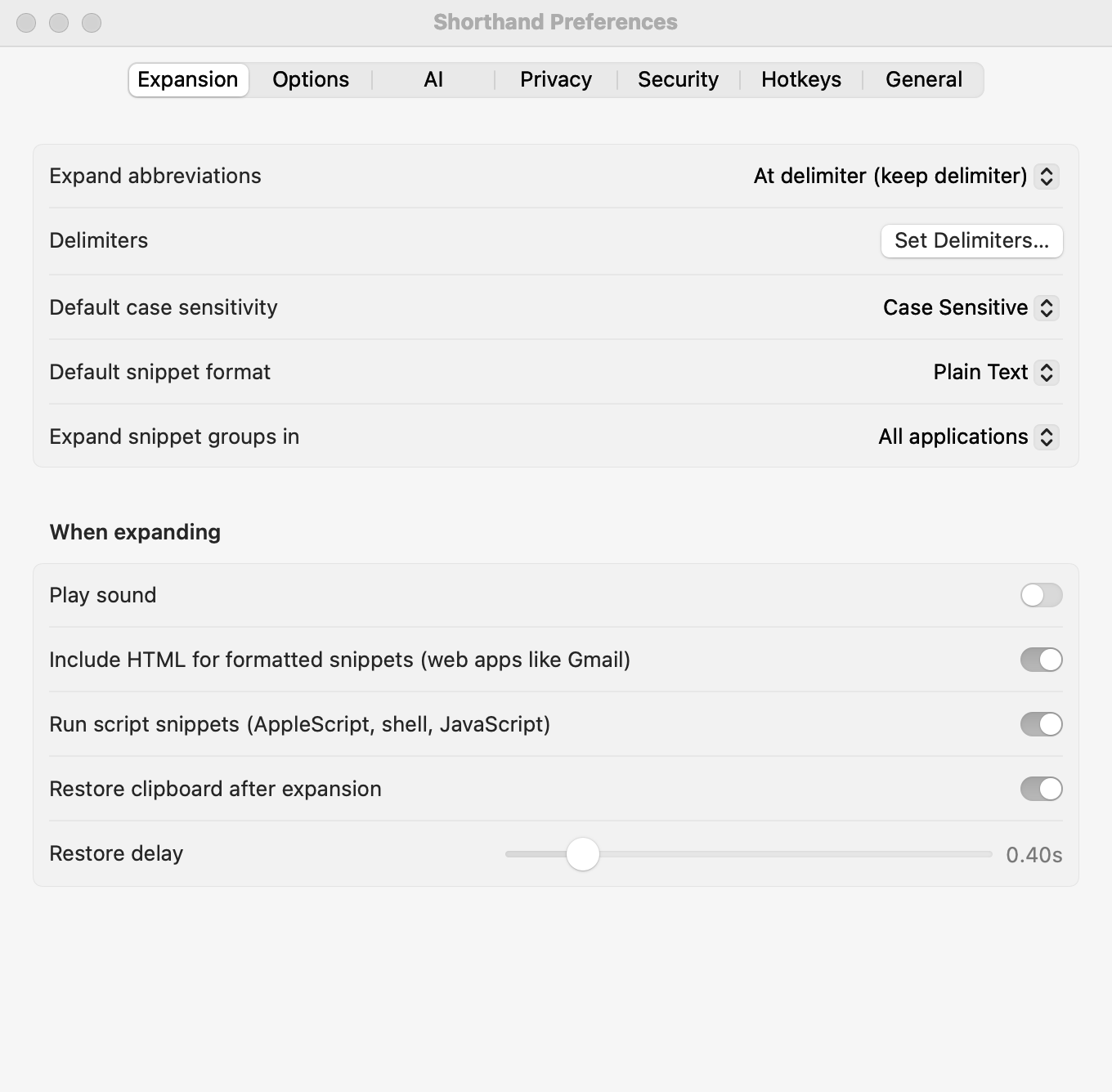
Shorthand watches for your abbreviations in almost any app and replaces them as you type.
Expand immediately, or when you type a delimiter such as a space, keeping or dropping the delimiter.
Choose your own delimiters, and what a group’s abbreviations must follow: whitespace, anything but letters, or any character.
Case sensitive, ignore case, or adapt to the case you typed (;sig, ;Sig, ;SIG).
Plain text, formatted text (bold, links, color), and HTML for web apps like Gmail.
Keys you type while a snippet is being inserted are held and replayed in order. Your clipboard is put back afterward.
Auto-capitalize sentences and fix DOuble CApitals, in every app.
A sound on expansion, if you like it.
Snippet content
Snippets that think a little.
Every snippet code from TextExpander 5 works the same way, plus a few more.
Fill-ins: single-line and multi-line fields, pop-up menus, and optional sections, with a live preview. %filltop% opens the window at the top of the screen.
Dates and times in any format, with date math (%@+3D means three days from now) and day and month names.
The clipboard, other snippets inside snippets, keys like Tab and Return, and where the cursor ends up.
Calculations (%calc%) and conditional text (%if% … %else% … %endif%).
AppleScript, shell, and JavaScript snippets. They run in the background with a 10-second limit, so typing never freezes.
AI, with your own key
Twelve providers. One shortcut.
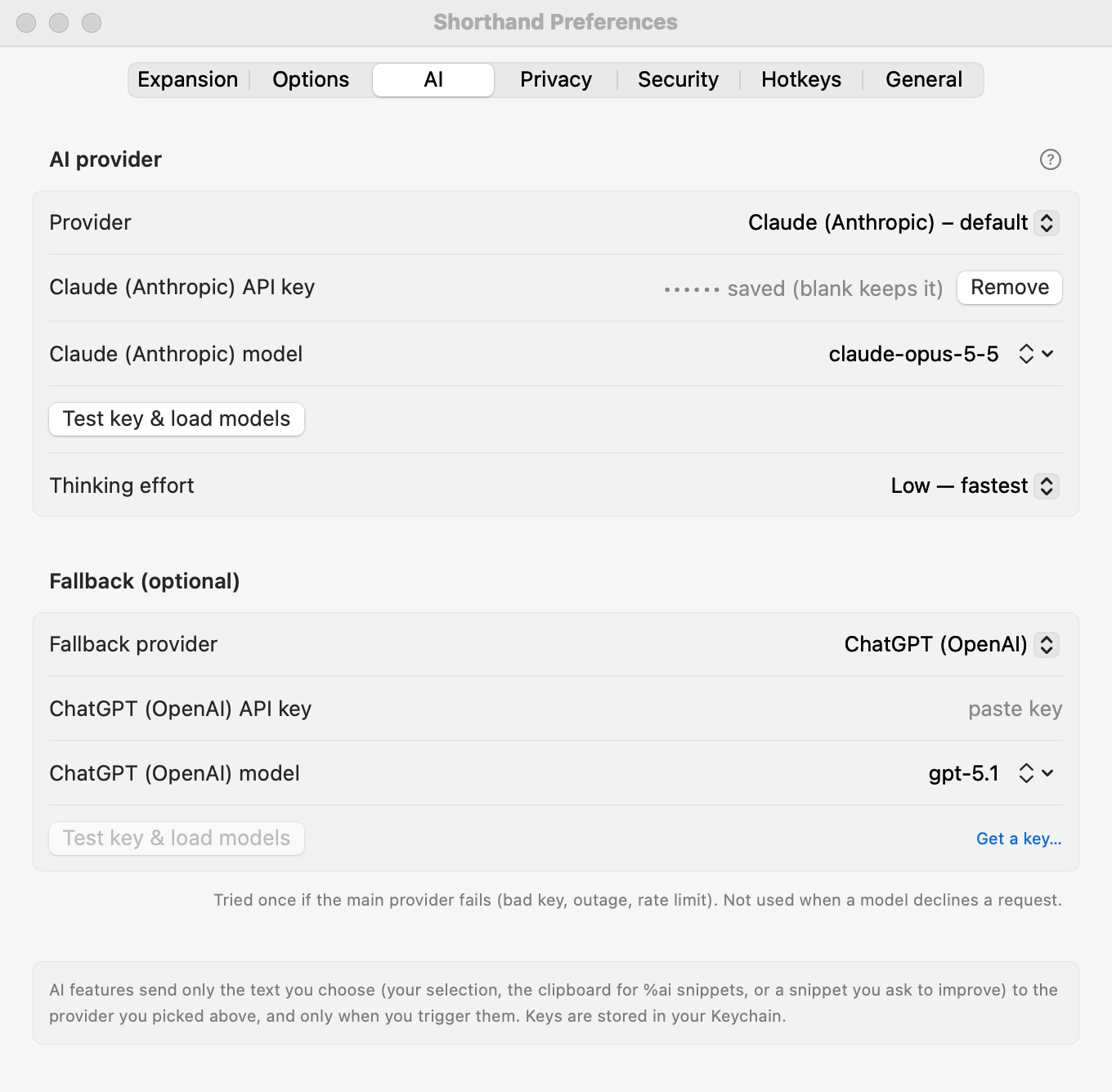
AI is optional and off until you add a key. Text goes only to the provider you choose.
AI Actions: select text anywhere, press ⌃⌥A, pick an action or type an instruction.
%ai:…% in snippets: let AI write part of a snippet, using fill-in answers or the clipboard.
Suggest with AI: turn any text into a snippet with an abbreviation, a label, and fill-ins.
Claude, ChatGPT, Gemini, OpenRouter, Groq, Together AI, Mistral, DeepSeek, Kimi, Grok, Hugging Face, or any OpenAI-compatible server such as Ollama or LM Studio.
A fallback provider is tried once if the first fails. Model lists load live from each provider.
Keys are kept in your Mac’s Keychain, one per provider.
Organizing
Hundreds of snippets, still tidy.
Groups work like TextExpander’s. The rest is new.
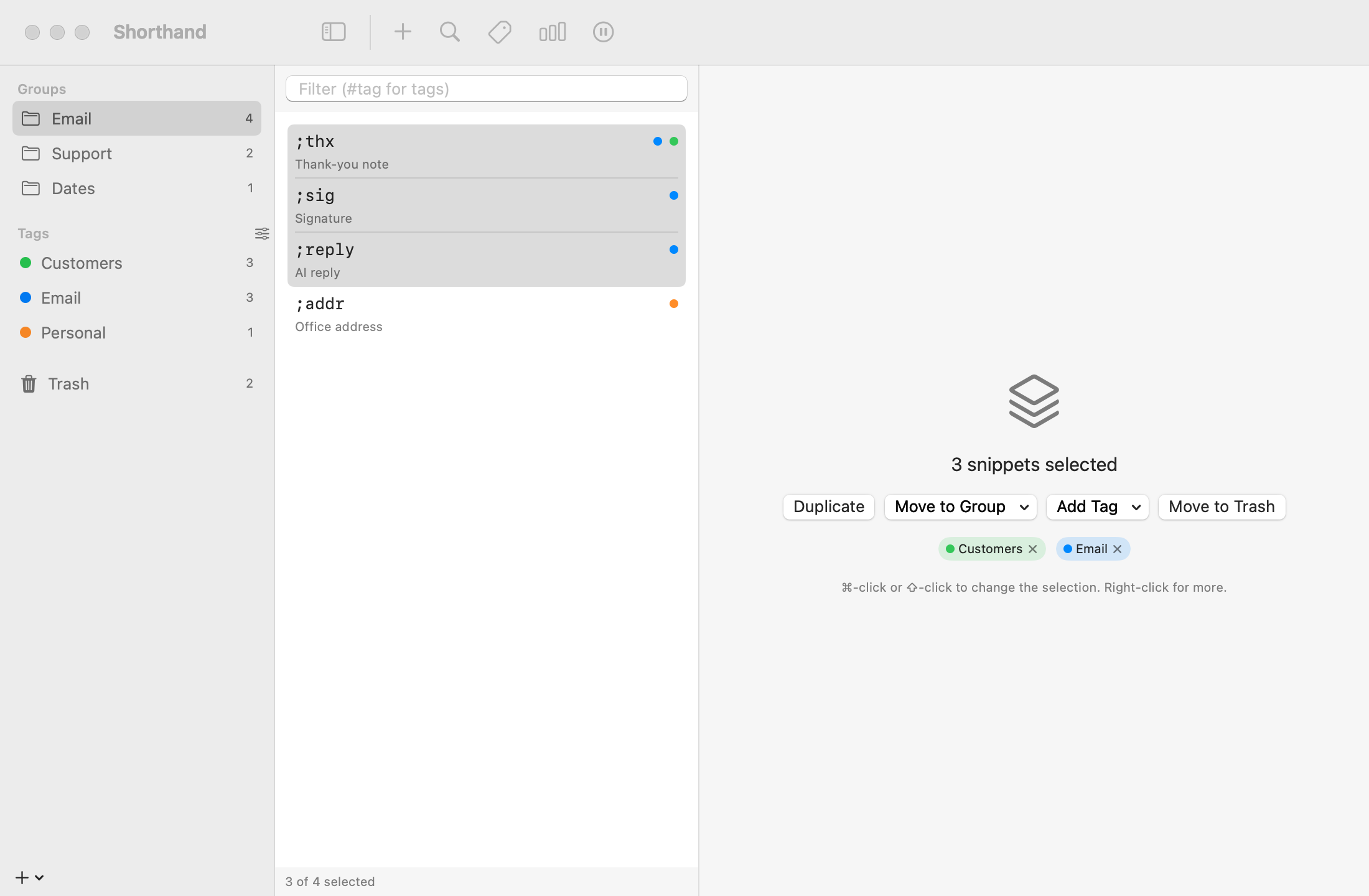
Select many snippets or groups with ⌘-click and ⇧-click, then duplicate, move, tag, or delete them together.
Tags with colors and counts, a Tag Manager, and #tag search.
A Trash with Put Back, emptied automatically after the number of days you choose.
⌘Z and ⇧⌘Z for library changes.
Duplicate and merge groups; drag snippets to a group, a tag, or the Trash.
Finding snippets
You don’t have to remember them all.
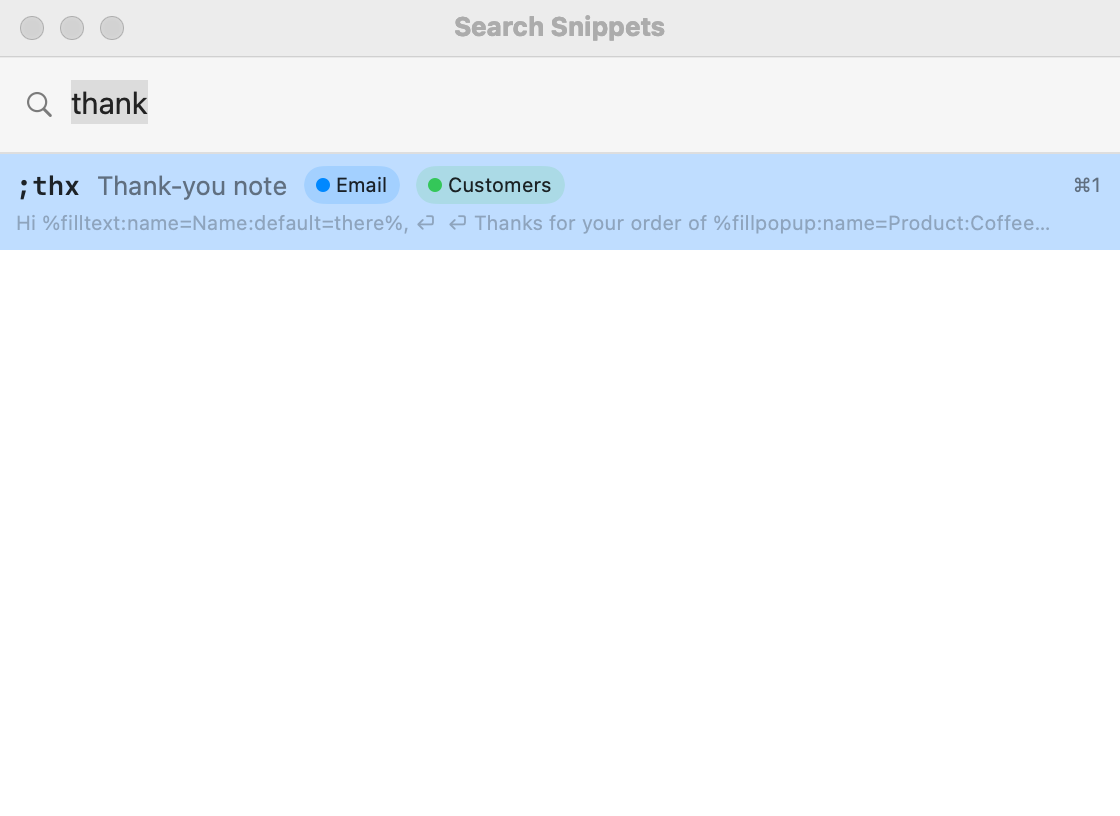
Insert any snippet without its abbreviation.
A search panel from a hotkey: type a few letters, press Return or ⌘1–9.
Inline search right where you’re typing.
Every group and snippet in the menu bar menu.
Global hotkeys to open Shorthand, toggle expansion, create a snippet from the selection or clipboard, edit the last snippet you expanded, and run AI Actions.
Gentle reminders when you type out a snippet’s full text, and suggestions for phrases you repeat (stored only as one-way hashes).
Privacy
Built to see as little as possible.
A text expander has to watch your typing. Shorthand limits what that means.
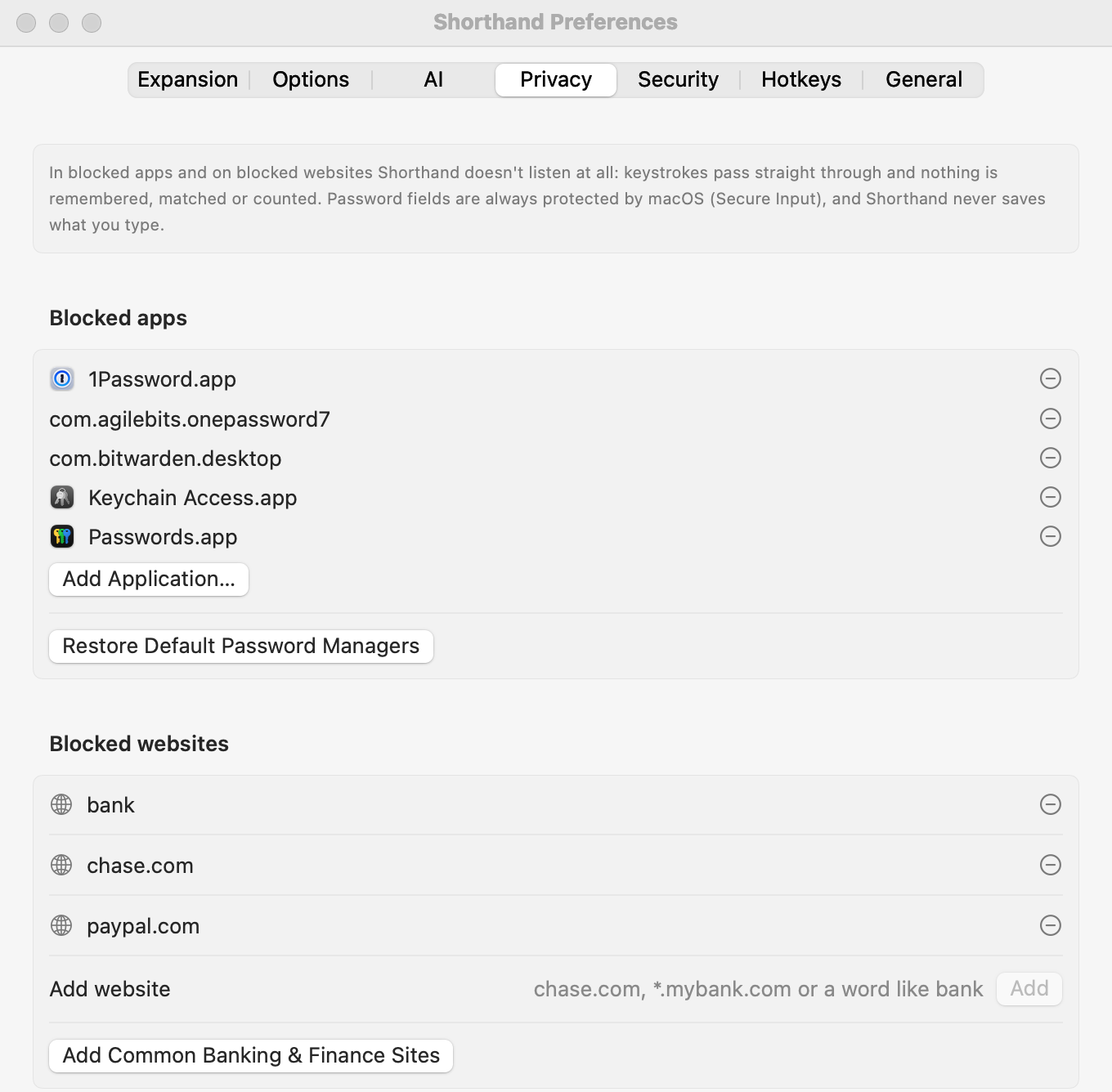
Blocked apps: Shorthand stops listening completely. Password managers are blocked by default.
Blocked websites: by domain, subdomain, or keyword. Shorthand reads the page address from your browser through macOS Accessibility.
A question the first time you use a new app: allow it, or block it.
No account, no analytics, no tracking. Snippets stay on your Mac unless you choose a sync folder.
If you turn its Accessibility access off while it’s running, Shorthand stops its keyboard monitor at once.
Security
Lock it down, or don’t.
Both are optional and offered once, after setup.
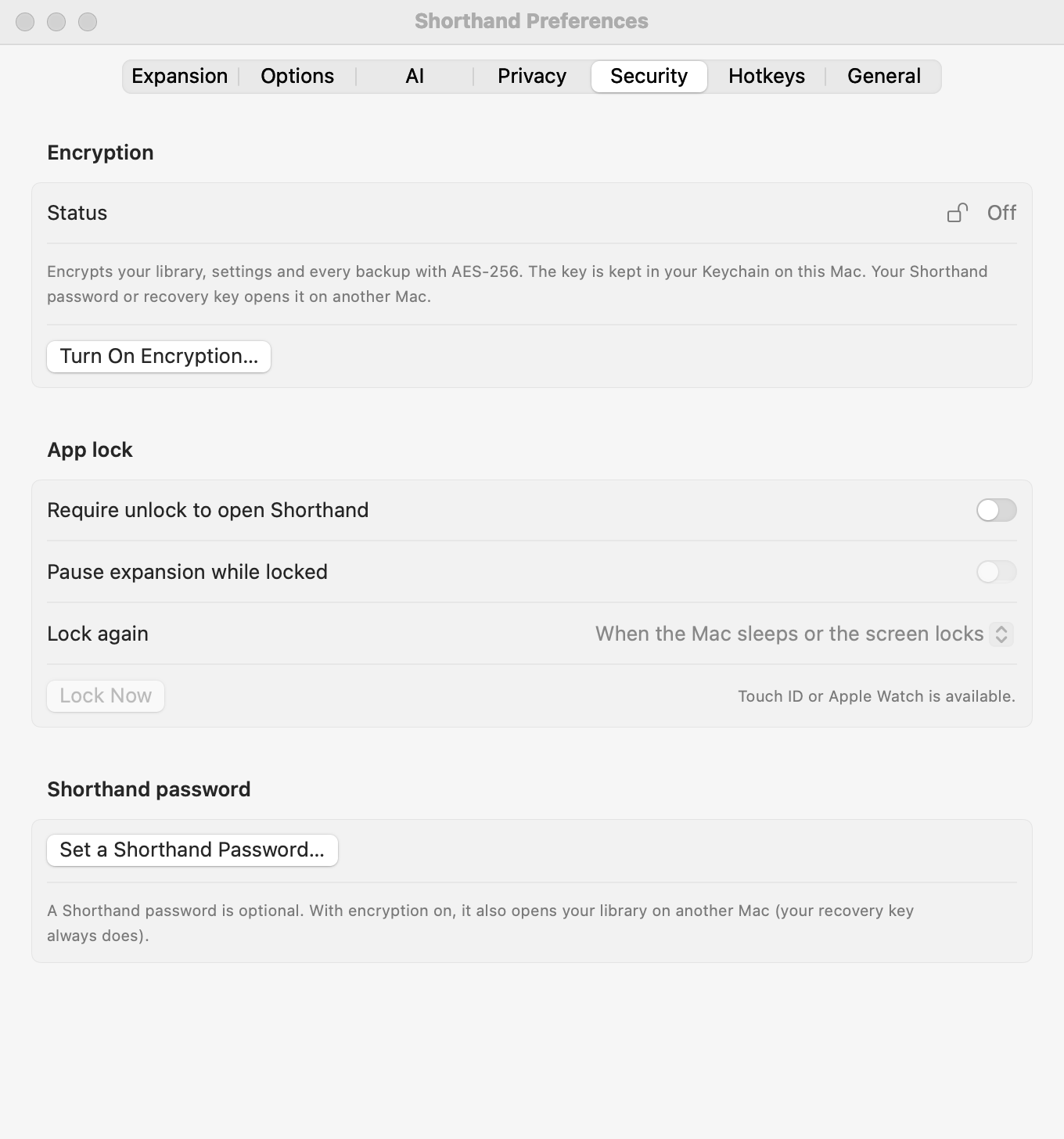
AES-256-GCM encryption for snippets, settings, statistics, and backups. The key lives in your Keychain.
A recovery key you keep, and an optional Shorthand password.
An app lock with Touch ID, Apple Watch, or your password. It locks again when your Mac sleeps, when the screen locks, or after a set idle time, and can pause expansion while locked.
Encrypted sync: unlock once on each Mac.
Your library
Your data, in files you control.
Import from TextExpander, Espanso, Raycast, Alfred, macOS Text Replacements, and CSV exports from other apps.
Export everything, any time, in Shorthand JSON, CSV, TextExpander, Espanso, or Raycast format.
Sync through Dropbox or iCloud Drive by keeping the library in a shared folder. Changes from another Mac load automatically.
Automatic backups at launch, Back Up Now, and Restore.
Statistics: expansions, characters saved, and time saved, including your TextExpander history.
Automatic, signed updates. Light and dark mode. A clean uninstall that can keep your snippets.