
Where your snippets live
Normally your library is a single file on this Mac: ~/Library/Application Support/Shorthand/Library.json. You can see the current location in Settings ▸ General ▸ Library ▸ Location, and click Show in Finder to reveal it.
To sync between Macs
On your first Mac (the one with your snippets)
Open Settings ▸ General.
Under Library, click Use Sync Folder….
Pick (or create) a folder inside Dropbox, iCloud Drive, or a similar service, and click Use Folder. Shorthand saves your library there as Shorthand Library.json.
Wait for the sync service to finish uploading the file.
On each other Mac
Install Shorthand and wait until the sync folder (with Shorthand Library.json inside) has downloaded.
Open Settings ▸ General, click Use Sync Folder… and choose that same folder.
Shorthand sees the library already there and asks what to do. Click Use Library in Folder. This Mac’s current snippets are backed up first, then it switches to the shared library.
Choosing Replace with This Mac’s does the opposite: the folder’s copy is backed up, then this Mac’s library is saved over it. Either way, nothing is lost. The set-aside copy is in Show Backups.
From then on, when another Mac changes the library, Shorthand reloads it within a few seconds and shows Snippet library updated from your sync folder.
Update Shorthand on every Mac. Shorthand 1.2 doesn’t know about the Trash or tags, so when a Mac still running 1.2 saves the shared library, they’re dropped from the file. This Mac notices, keeps its own Trash and tags, saves them back, and shows Library updated by an older Shorthand on another Mac. Your Trash and tags were kept. Update Shorthand on your other Macs. If you see that, install the latest Shorthand on your other Macs.
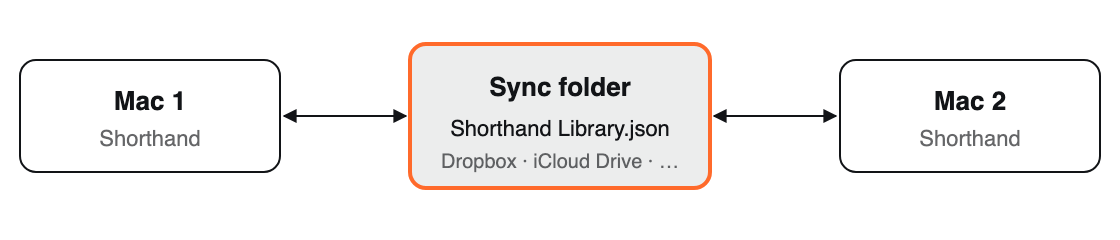
Each Mac reads and writes the same library file.
Avoid editing snippets on two Macs at the same moment. The most recently saved library wins, so a change made on the other Mac at the same time can be lost. Backups (below) let you recover.
Encrypted libraries. If encryption is on, the library in your sync folder is encrypted too. Each other Mac asks for your Shorthand password or recovery key once, when you choose the folder, and opens it by itself after that. Update Shorthand on every Mac first: older versions can’t read an encrypted library. See Syncing an encrypted library.
Only the snippet library is synced. Settings, hotkeys, statistics, and AI keys stay on each Mac.
To stop syncing on a Mac, click Use Local Storage. Its current snippets are saved back to the Mac.
Backups
In Settings ▸ General ▸ Backup:
Back up library at every launch (on by default): a copy is saved each time Shorthand starts.
Keep 20 backups: how many to keep; older ones are deleted. Set it to 0 to keep all.
Back Up Now: make a copy right away, e.g. before a big clean-up.
Show Backups: opens the backups folder (~/Library/Application Support/Shorthand/Backups). Each backup is named with its date and time.
To restore a backup
Open Settings ▸ General and click Restore….
Choose a backup file (they’re named like Library 2026-11-01-093000.json).
Shorthand asks Replace your library with this backup (… snippets)? Click Restore.
Your current library is backed up first, so restoring can itself be undone.
With encryption on, backups are encrypted. See Restoring an older encrypted backup.
Built-in safety nets
Undo: after deleting a snippet or group, click Undo in the notice that appears. ⌘Z undoes moves, deletes, tag changes, and merges; see Undoing changes. Reloading the library from your sync folder clears the undo history.
Damaged library: if the library file can’t be read, Shorthand never overwrites it. It moves it aside (adding .unreadable- and the date to its name), starts with the two example snippets, and tells you. Restore a backup to continue.
Export: File ▸ Export Snippets… saves every group (or the ones you select) as a file you can keep, share, or open in another app. See Exporting Your Snippets.
Related: Security & Encryption · Importing · Privacy, Blocklist & Permissions · Library problems