
AI Actions
Rewrite, shorten, translate, or tidy any text you’ve selected, in any app.
Select some text, for example a rough email draft.
Press ⌃⌥A, or choose ✨ AI Actions on Selection… from the menu bar icon.
A panel appears near your cursor showing the start of your selection. Click an action, or use ↑ ↓ and Return.
Or type your own instruction, e.g. make this sound less annoyed. Typing also filters the list; if nothing matches, press Return to use your words as the instruction.
“✨ Working…” appears briefly, then the result replaces your selection.
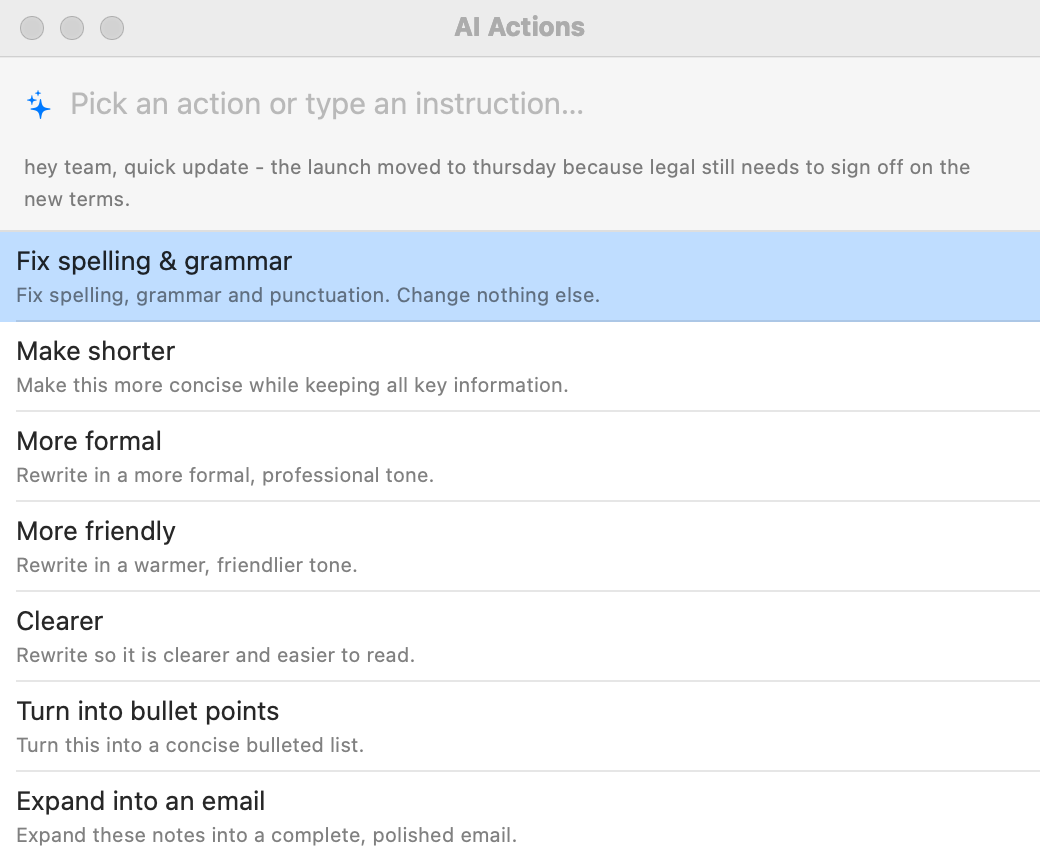
The AI Actions panel. Esc closes it without changing anything.
Built-in actions: Fix spelling & grammar, Make shorter, More formal, More friendly, Clearer, Turn into bullet points, Expand into an email, Translate to Spanish, and Translate to English.
Don’t like the result? Press ⌘Z; in most apps that brings your original text back.
To change the list of actions
Open Settings ▸ AI and scroll to the AI Actions section.
Edit an action’s name or instruction in place, drag to reorder, or click the minus button to remove one.
Click Add Action for a new one, e.g. name Translate to French, instruction Translate into French.
Restore Defaults brings back the built-in list.
To use a different shortcut, change AI Actions on Selection in Settings ▸ Hotkeys.
Selections longer than 20,000 characters are cut to that length before being sent.
AI in snippets: %ai
Let AI write part of a snippet each time it expands. Put the instruction between %ai: and %:
Abbreviation
Content
;reply
%ai:Write a brief, polite reply to this message: {clipboard}%
;tldr
%ai:Summarize this in 3 bullet points: {clipboard}%
;decline
Hi %filltext:name=Name%,⏎⏎Thanks for the invitation to %fillpopup:name=Event:the meeting:the dinner:the call%. %ai:Write one warm sentence declining an invitation to {Event}.%⏎⏎John
{clipboard} is replaced with the text on your clipboard, and {Field name} with what you typed into that fill-in, before the prompt is sent.
If the snippet has fill-ins, you fill them in first; then the AI writes.
Your abbreviation disappears at once and “✨ Writing…” shows while the AI works. You can keep typing elsewhere meanwhile.
Several %ai parts in one snippet are written at the same time.
If it fails, your abbreviation is typed back and a message explains why (AI errors).
The prompt can’t contain a % sign; write “percent”.
The snippet editor’s Insert ▸ AI ✨ menu has ready-made prompts: AI Text…, Summarize Clipboard, Reply to Clipboard, and Fix Clipboard Text.
Suggest with AI
Turn a piece of text into a reusable snippet: AI picks an abbreviation and label, and replaces the parts that change (names, dates, amounts) with fill-ins.
Open a snippet in the editor, or select text in any app and choose Create Snippet from Selection….
Click Suggest with AI.
In the Create Snippet window, the abbreviation, label, and text are filled in for you; change anything before clicking Create.
In the main snippet editor, a dialog Use this suggestion? shows the result. Choose:
Use All: takes the suggested abbreviation, label, and text (the text only for plain-text snippets).
Abbreviation & Label Only: keeps your text, takes the label, and takes the abbreviation only if the snippet has none.
Cancel: changes nothing.
It avoids abbreviations you already use. It’s not available for script snippets.
Related: Setting Up AI · Macro Reference · Privacy, Blocklist & Permissions