
An example
Create a snippet with the abbreviation ;thx, the label Thank-you note, and this content:
Hi %filltext:name=Name:default=there%,
Thanks for your order of %fillpopup:name=Product:Coffee beans:default=Tea:Mugs%.
%fillpart:name=Shipping note:default=yes%It will ship within 2 working days.%fillpartend%
Best,
John
Type ;thx and a space. This window appears near your cursor:
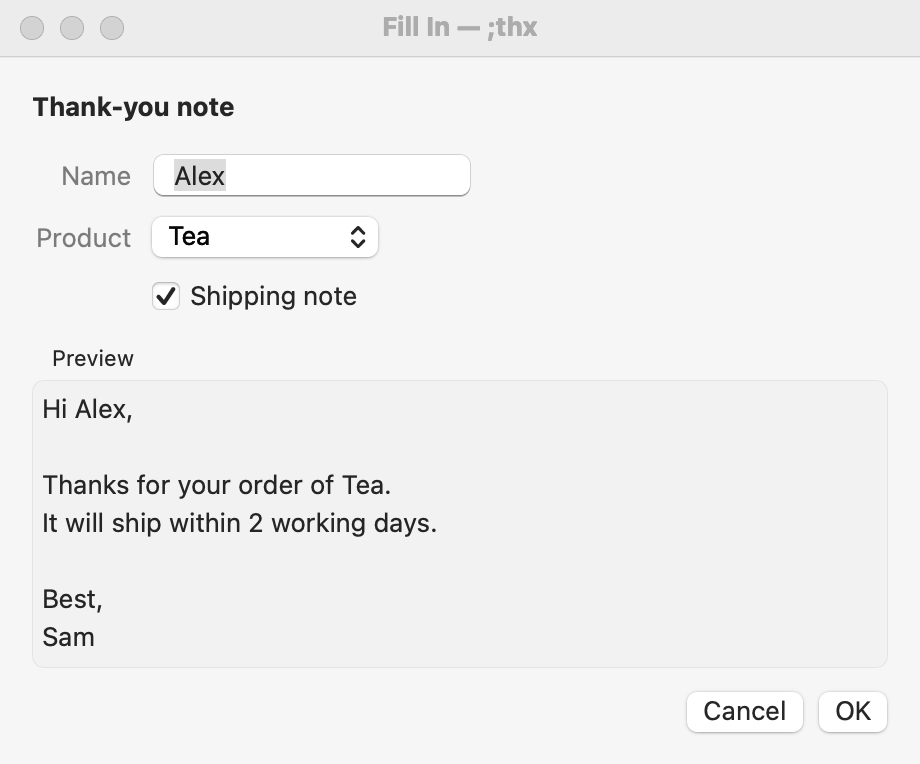
The fill-in window: the snippet’s label, one row per field, a live Preview, and Cancel / OK.
To finish:
Type or choose a value for each field. The first text field is ready for typing.
Watch the Preview update as you go.
Click OK or press Return to insert the text. Click Cancel or press Esc to give up; your abbreviation stays as you typed it.
Your other abbreviations work inside the fill-in window too, so you can expand a snippet into a field.
The four kinds of field
Add them from the snippet editor’s Insert ▸ Fill-ins menu, or type them.
Menu item
Code
In the window
Single Line Field
%filltext:name=City:default=London%
A one-line text box.
Multi-line Field
%fillarea:name=Notes:height=5%
A larger box for several lines.
Popup Menu
%fillpopup:name=Tone:Formal:default=Friendly:Brief%
A menu of choices, separated by colons. default= marks the one chosen at first; otherwise it’s the first option.
Optional Section
%fillpart:name=PS:default=yes%P.S. See you Friday!%fillpartend%
A checkbox. The text between the codes is included only when it’s checked. Use default=yes to check it at first.
Field settings
name= is the label shown in the window. Unnamed fields are labeled Text, Choice, or Include.
default= is the starting value.
width= sets the box width in characters (text fields and multi-line boxes); height= sets the number of lines (multi-line boxes only).
Separate settings with colons. Values can’t contain a colon or a percent sign.
Use the same value twice
Fields with the same name share one value; you only fill it in once. This works across nested snippets too.
Dear %filltext:name=Client%,
…
I look forward to working with you, %filltext:name=Client%.
Use fill-in values in sums, conditions, and AI
Inside %calc, %if, and %ai, write {Field name} to use a field’s value:
%filltext:name=qty:default=1% × $%filltext:name=price:default=20%
Total: $%calc:{qty}*{price}:2%
%if:{qty}>10%Bulk discount applied.%endif%
See Calculations & Conditions and AI in snippets.
%filltop%
%filltop% (Insert ▸ Fill-ins ▸ Show at Top) opens the fill-in window at the top center of the screen instead of next to your text cursor. Use it when the window would cover what you need to see.
Related: Macro Reference · Snippets & Groups · Calculations & Conditions