
To search and insert a snippet
Click where you want the text to go.
Choose Search Snippets… from the menu bar icon, or press your Search Snippets hotkey.
Type part of the abbreviation, label, tag, or text. To narrow it to a tag, type # and the tag name (see below).
Press Return or Tab to insert the highlighted snippet, or click one. ⌘1–⌘9 insert the first nine results directly.
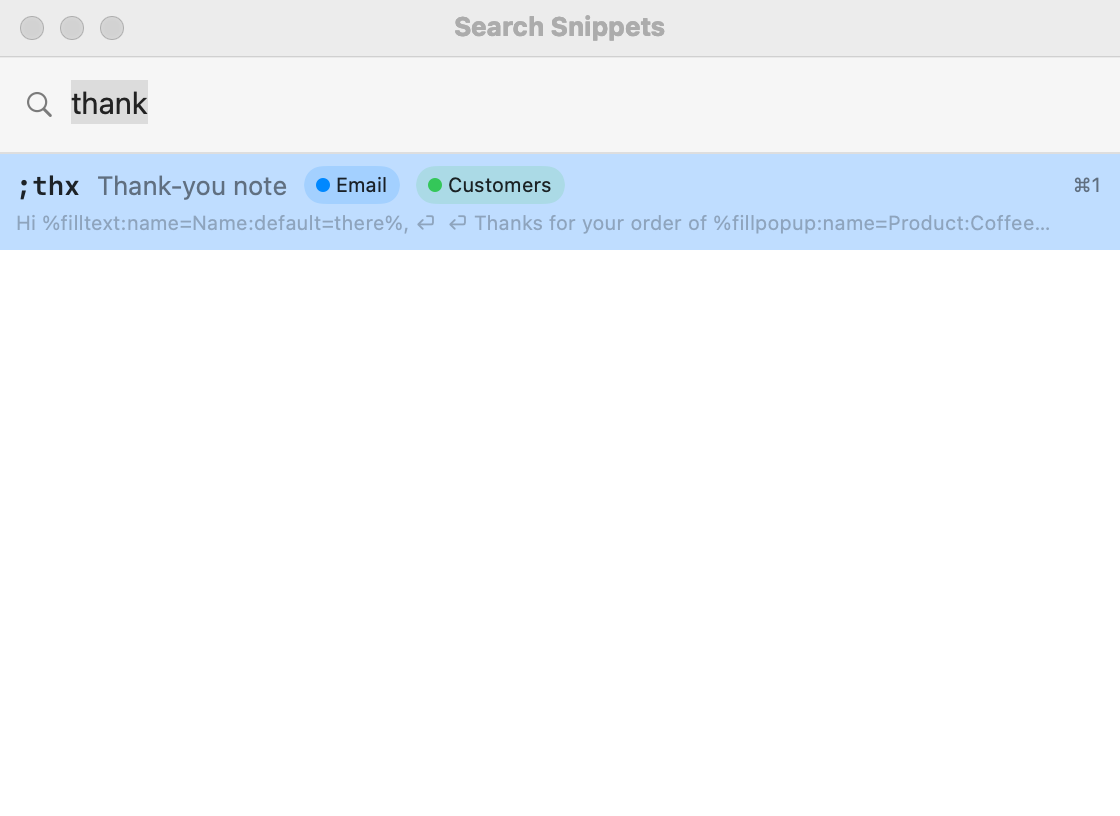
Search Snippets. Exact abbreviation matches come first, then abbreviations that start with or contain your text, then labels, then tag names, then snippet text.
With an empty search, your snippets are listed by how often you use them.
Inline Search is the same panel, opened next to your text cursor instead of at the top of the screen. It has no menu item; give it a hotkey.
Groups with Include in search turned off are left out (the Suggested Snippets group, for example).
Snippets with fill-ins show the fill-in window as usual after you pick them.
Searching by tag
The search field reads Search snippets (#tag to filter by tag). A word that starts with # shows only snippets with a matching tag; the other words search as usual.
You type
What you get
Every snippet with a tag containing “email”.
#email thanks
Snippets tagged “email” that also match “thanks”.
#email #clients
Only snippets that have both tags.
clients
Plain words match tag names too, as well as abbreviations, labels, and text.
Each result shows up to three of its tags as small colored chips. More about tags: Tags.
The menu bar menu
Click the Shorthand icon in the menu bar. Hotkeys you’ve set are shown next to each item.
Item
What it does
Search Snippets…
Opens search.
✨ AI Actions on Selection…
Rewrites the selected text with AI (AI Actions).
Open Shorthand
Opens the main window.
Block Shorthand in App / Block Shorthand on site
Stops Shorthand listening in the app or on the website in front. See Blocklist.
⏸ Paused here: … and Allow Shorthand Here
Shown instead when the app or website in front is blocked, or (as ⏸ Paused here: waiting for your answer) while Shorthand is asking whether to work in a new app. Allow Shorthand Here removes the block, or answers Allow. See The first time you use an app.
Disable Expansion / Enable Expansion
Pauses or resumes all expansion.
Create New Snippet…
Opens the Create Snippet window, empty.
Create Snippet from Selection…
Same, with the text selected in the front app.
Create Snippet from Clipboard…
Same, with the clipboard contents (keeps formatting).
Edit Last Expanded Snippet…
Opens the snippet you used last.
💡 … Snippet Suggestions…
Shown when there are suggestions waiting.
Your groups
Each group is a submenu. Choose a snippet to insert it where you were typing.
Preferences…
Opens Settings.
Help
Opens this help.
Buy Me a Coffee on Ko-fi…
See Support Shorthand.
Quit Shorthand
Quits. Abbreviations stop expanding.
Warnings (Secure Input, a second text expander running, missing Accessibility permission) appear in this menu too; see Troubleshooting.
The icon itself changes: a crossed-out icon means expansion is off; a warning triangle means Secure Input is blocking expansion.
Hotkeys
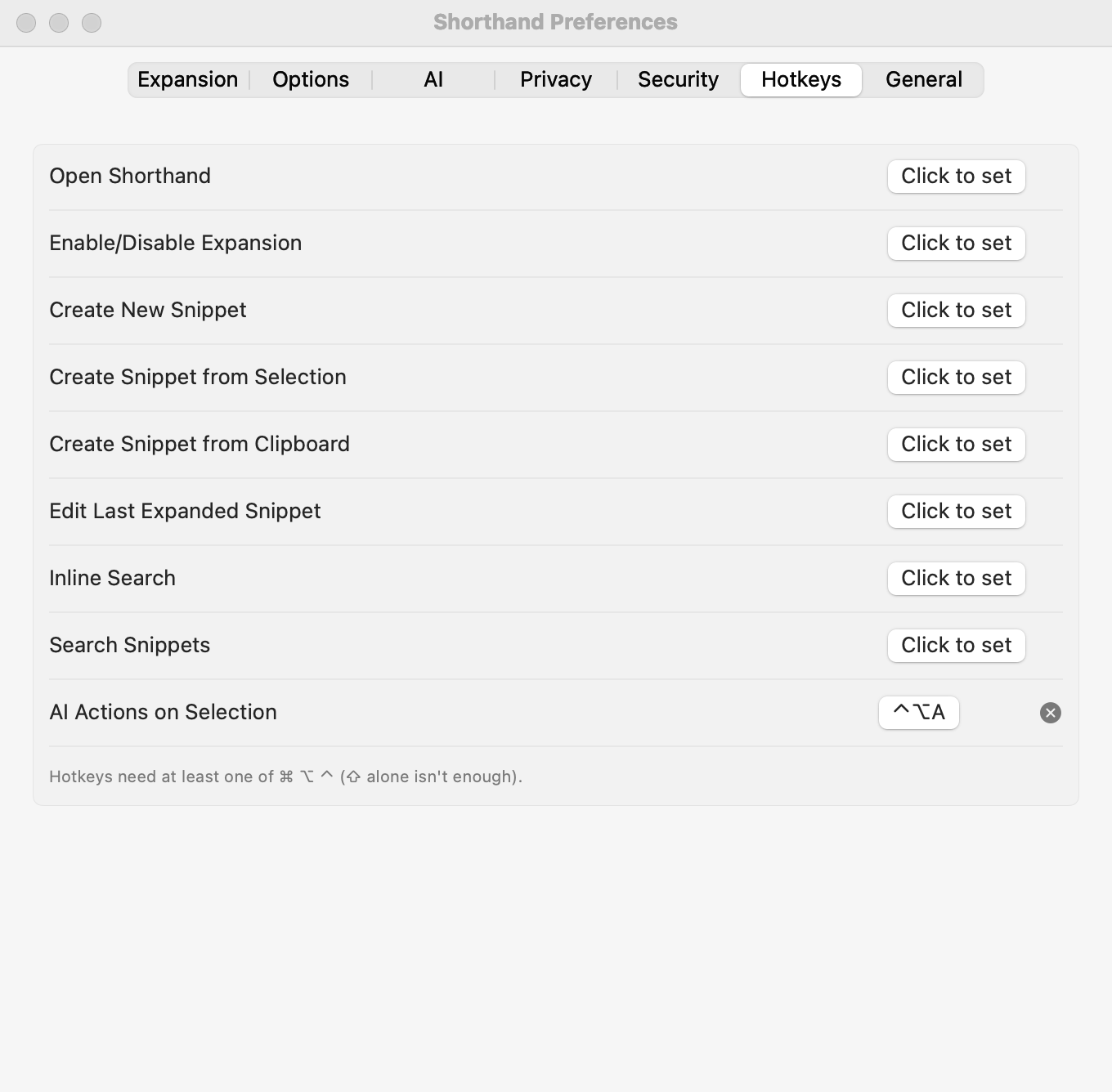
Settings ▸ Hotkeys. Click a button and press the keys you want.
Hotkeys work from any app. Set them in Settings ▸ Hotkeys:
Click the button next to an action (it says Click to set).
When it says Press keys…, press the combination you want. Press Esc to cancel.
To remove a hotkey, click the ⓧ next to it.
A hotkey needs at least one of ⌘ ⌥ ⌃; ⇧ alone isn’t enough. Pick combinations other apps don’t use.
Action
Default
Open Shorthand
none
Enable/Disable Expansion
none
Create New Snippet
none
Create Snippet from Selection
none
Create Snippet from Clipboard
none
Edit Last Expanded Snippet
none
Inline Search
none
Search Snippets
none
AI Actions on Selection
⌃⌥A
Keyboard shortcuts in Shorthand’s windows
Shortcut
Menu item
⌘,
Shorthand ▸ Settings…
⌘N
File ▸ New Snippet
⇧⌘N
File ▸ New Group
⇧⌘I
File ▸ Import Snippets…
⇧⌘E
File ▸ Export Snippets…
⌘W
File ▸ Close Window
⌘B / ⌘I / ⌘U
Format ▸ Bold / Italic / Underline
⌘T
Format ▸ Show Fonts
⇧⌘C
Format ▸ Show Colors
⌘0
Window ▸ Snippet Library
—
Window ▸ Statistics: expansions, characters, and time saved, most-used snippets
⇧⌘T
Window ▸ Tag Manager (see Tag Manager)
⌘A
Edit ▸ Select All: in the snippet list, selects every snippet shown (see Multi-Select)
⌘?
Help ▸ Shorthand Help
—
Help ▸ Macro Reference
Related: Snippets & Groups · AI Features · Abbreviations & Expansion