
To add a pack
Choose File ▸ Template Packs…, or click + below the group list and choose Template Packs….
Pick a pack on the left. The right side lists its snippets and what each one types.
Click Add Pack. The pack becomes a new group in your library, selected and ready to use.
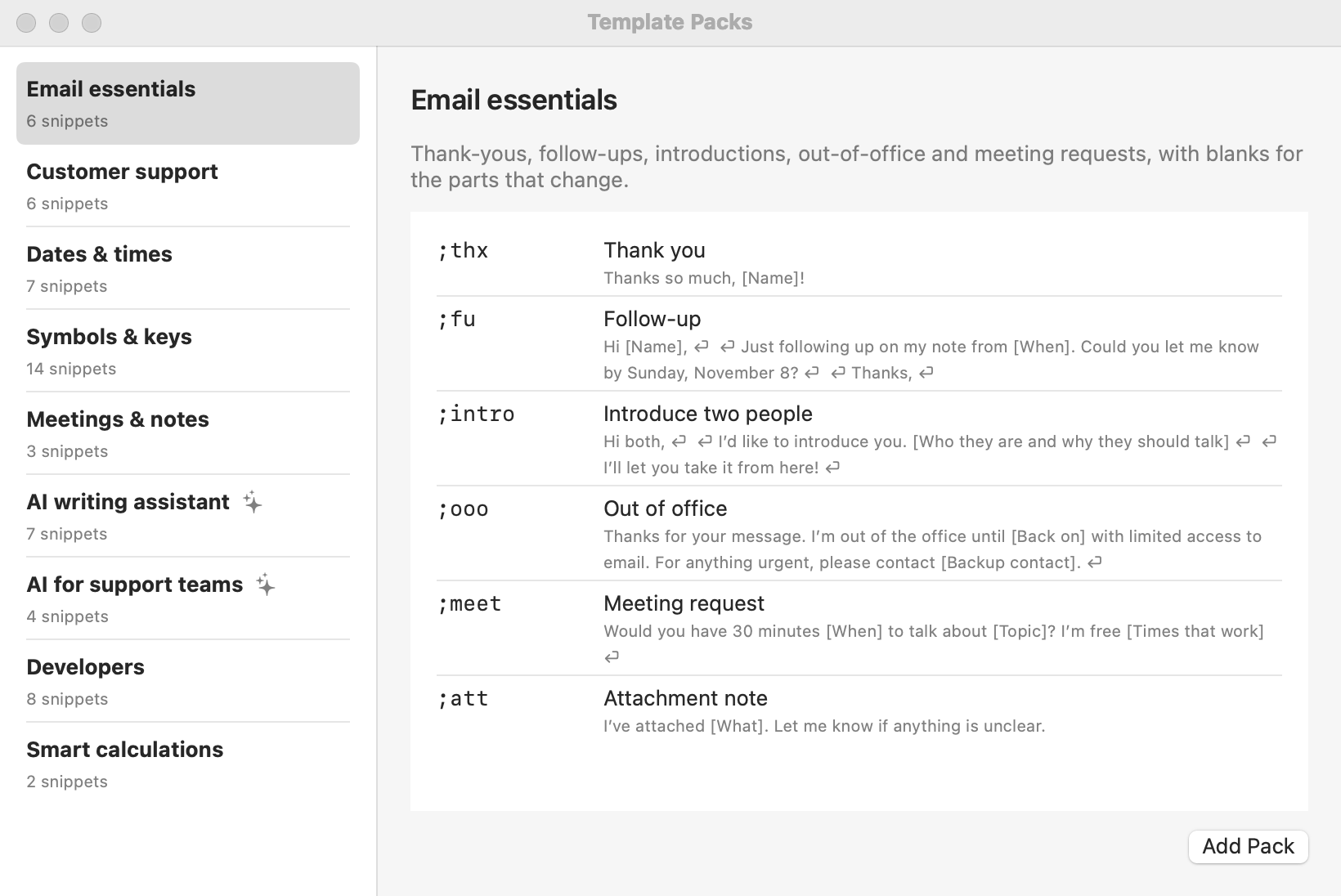
The Template Packs window. Blanks show as [Name]; they become fill-in fields when the snippet expands.
Abbreviations you already use aren’t replaced. The pack’s copy gets a number instead (;thx becomes ;thx1), and Shorthand tells you which ones.
It’s your copy. Edit, rename, move, or delete the snippets like any others. Adding a pack again adds a second copy.
Undo with ⌘Z, or move the group to the Trash.
AI packs: copy some text, then type the abbreviation. AI writes the result where you’re typing. These need an AI provider; see Setting Up AI.
The packs
Email essentials
Thank-yous, follow-ups, introductions, out-of-office notes, and meeting requests, with blanks for the parts that change.
Type
What it does
;thx
Thank you
;fu
Follow-up
;intro
Introduce two people
;ooo
Out of office
;meet
Meeting request
;att
Attachment note
Customer support
Friendly, consistent replies for help desks: greetings, order numbers, refunds, updates, escalations, and closing a ticket.
Type
What it does
;hi
Greeting
;order
Ask for the order number
;refund
Refund issued
;eta
Update coming
;esc
Escalated
;close
Closing the ticket
Dates & times
Today, tomorrow, next week, and timestamps in the formats people actually use.
Type
What it does
;td
Today, long
;iso
Today, ISO
;now
Time now
;stamp
Timestamp
;tmrw
Tomorrow
;nw
A week from today
;due
Due in 30 days
Symbols & keys
Mac key symbols, arrows, marks, and a couple of classics you can never find when you need them.
Type
What it does
;cmd
Command key
;opt
Option key
;ctrl
Control key
;shift
Shift key
;ret
Return key
;arr
Arrow
;check
Check mark
;cross
Cross mark
;deg
Degree
;tm
Trademark
;copy
Copyright
;em
Em dash
;shrug
Shrug
;flip
Table flip
Meetings & notes
Agendas, meeting notes with action items, and a recap email with a next step and a date.
Type
What it does
;agenda
Agenda
;notes
Meeting notes
;recap
Recap email
AI writing assistant Uses AI
Copy any text, type an abbreviation, and AI writes the result in place: summaries, fixes, rewrites, replies, and subject lines.
Type
What it does
;tldr
Summarize the clipboard
;polish
Fix spelling and grammar
;shorter
Make it shorter
;kind
Make it kinder
;reply
Draft a reply
;subj
Subject line
;bullets
Notes to bullets
AI for support teams Uses AI
Copy a customer’s message and let AI draft an apology, an answer, or an explanation in your voice, ready to check and send.
Type
What it does
;sorry
Apology
;answer
Answer the question
;explain
Explain simply
;tone
Calm an angry reply
Developers
TODOs, logging, conventional commits, Markdown tables, and code fences, plus a fresh UUID from a script snippet.
Type
What it does
;todo
TODO comment
;cl
console.log
;pf
Python f-string print
;cc
Conventional commit
;fence
Code fence
;mdt
Markdown table
;uuid
New UUID
;ip
This Mac’s local IP
Smart calculations
Snippets that do the math: a tip, a quick quote with tax, and a discount that only appears when it applies.
Type
What it does
;tip
Tip calculator
;quote
Quote with tax
Related: Snippets & Groups · Fill-ins · AI Features