
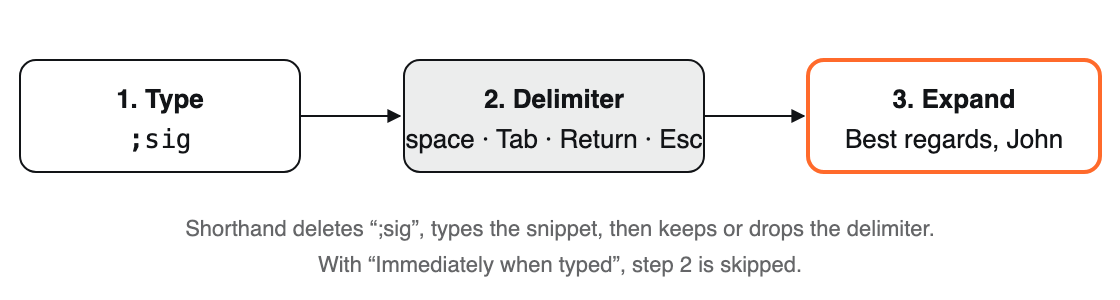
Abbreviation → delimiter → expansion.
When abbreviations expand
Choose in Settings ▸ Expansion ▸ Expand abbreviations:
At delimiter (keep delimiter) (default)
Type the abbreviation, then a delimiter such as a space. The snippet replaces the abbreviation and the space stays after it.
At delimiter (abandon delimiter)
Same, but the delimiter is dropped. Handy when snippets end with their own punctuation.
Immediately when typed
Expands the moment the last letter is typed. Fastest, and best for auto-correct style groups (teh → the), but make sure no abbreviation is the start of another.
A single snippet can override the keep/drop choice with %+ (keep) or %- (drop). See Macro Reference.
Delimiters
A delimiter is the key you press after an abbreviation to make it expand. By default these are Space, Tab, Return, and Esc.
In Settings ▸ Expansion, click Set Delimiters… (shown only for the two delimiter modes).
Select the keys you want, such as . , ! or ?.
Click Done. Defaults puts back Space, Tab, Return, and Escape.
Upper and lower case
Each snippet has a case setting next to its abbreviation. New snippets use Settings ▸ Expansion ▸ Default case sensitivity.
Setting
Abbreviation sig; you type…
Case Sensitive
Only sig expands.
Ignore Case
sig, Sig, and SIG all expand to the same text.
Adapt to Case of Abbreviation
sig → “best regards”; Sig → “Best regards” (first letter capitalized); SIG → “BEST REGARDS”.
Expand after
Each group decides what may come right before an abbreviation. Select the group and choose Expand after:
Choice
Abbreviation btw expands in…
Whitespace
“ btw” at the start of a line or after a space, but not “(btw”.
All but letters and numbers
Also “(btw” or “—btw”, but not “abtw”.
All characters
Anywhere, even in the middle of a word. Useful for symbols, e.g. :) → ☺.
Good to know
When two abbreviations both match, the longer one wins.
Shorthand forgets what you were typing when you click, use arrow keys, use a ⌘ or ⌃ shortcut, press ⌥⌫, or switch apps. Retype the abbreviation in one go.
Abbreviations don’t expand inside Shorthand’s own windows, so you can type them in the editor.
If you keep typing while a snippet is being inserted, your keystrokes are held and typed right after it.
Shorthand inserts text by pasting it, then puts your clipboard back. Turn this off with Restore clipboard after expansion, or set Restore delay (0.15–2 seconds, default 0.40) if a slow app pastes the wrong thing.
To pause all expansion, choose Disable Expansion from the menu bar icon, or set a hotkey for Enable/Disable Expansion.
Other expansion settings
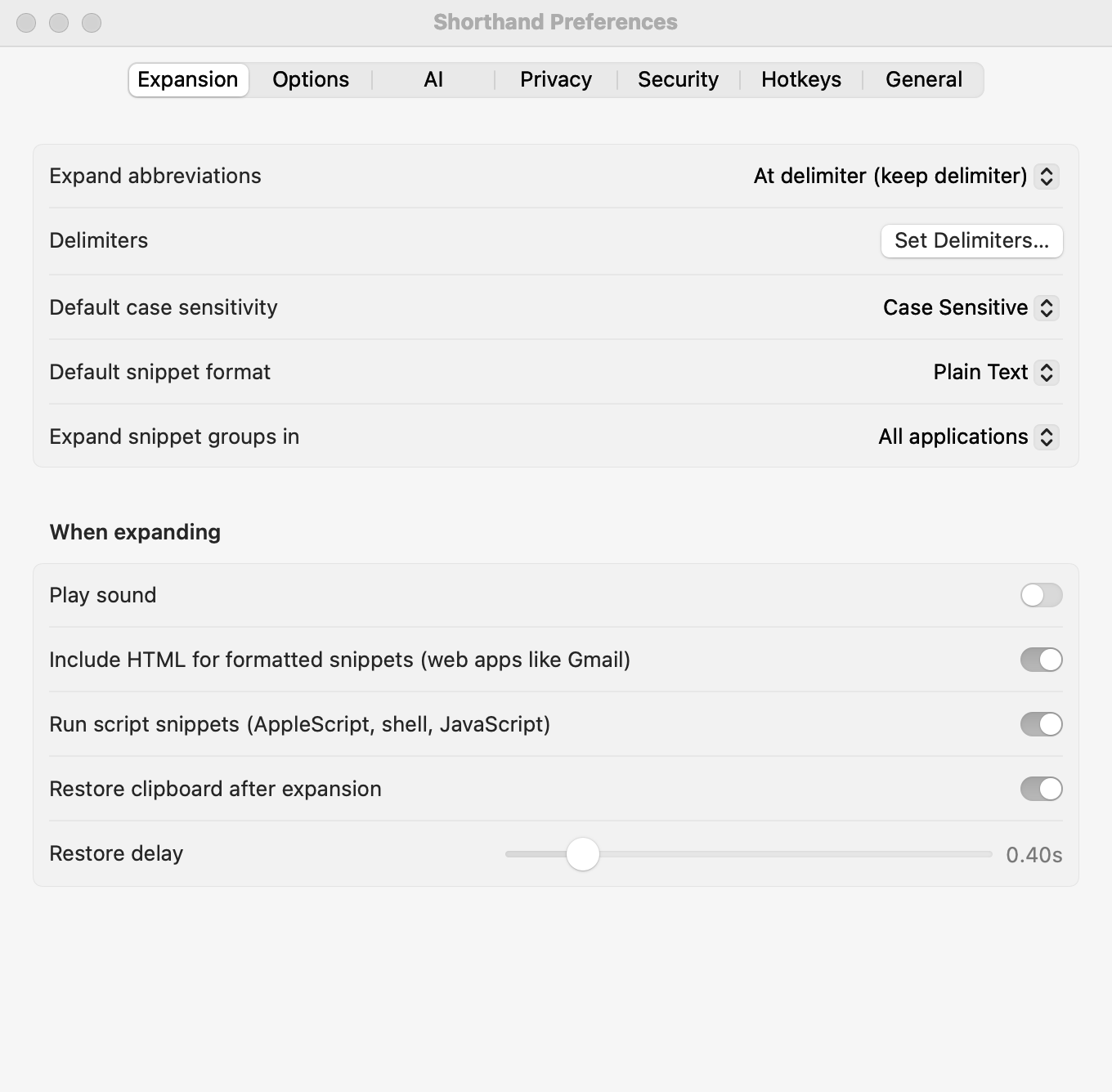
Settings ▸ Expansion: when abbreviations expand, delimiters, case, and what happens while expanding.
In Settings ▸ Expansion ▸ When expanding:
Play sound and Sound: a sound on every expansion (groups can choose their own).
Include HTML for formatted snippets (web apps like Gmail): helps formatting survive in web apps.
Run script snippets (AppleScript, shell, JavaScript): see Script Snippets.
In Settings ▸ Options (these work even without snippets):
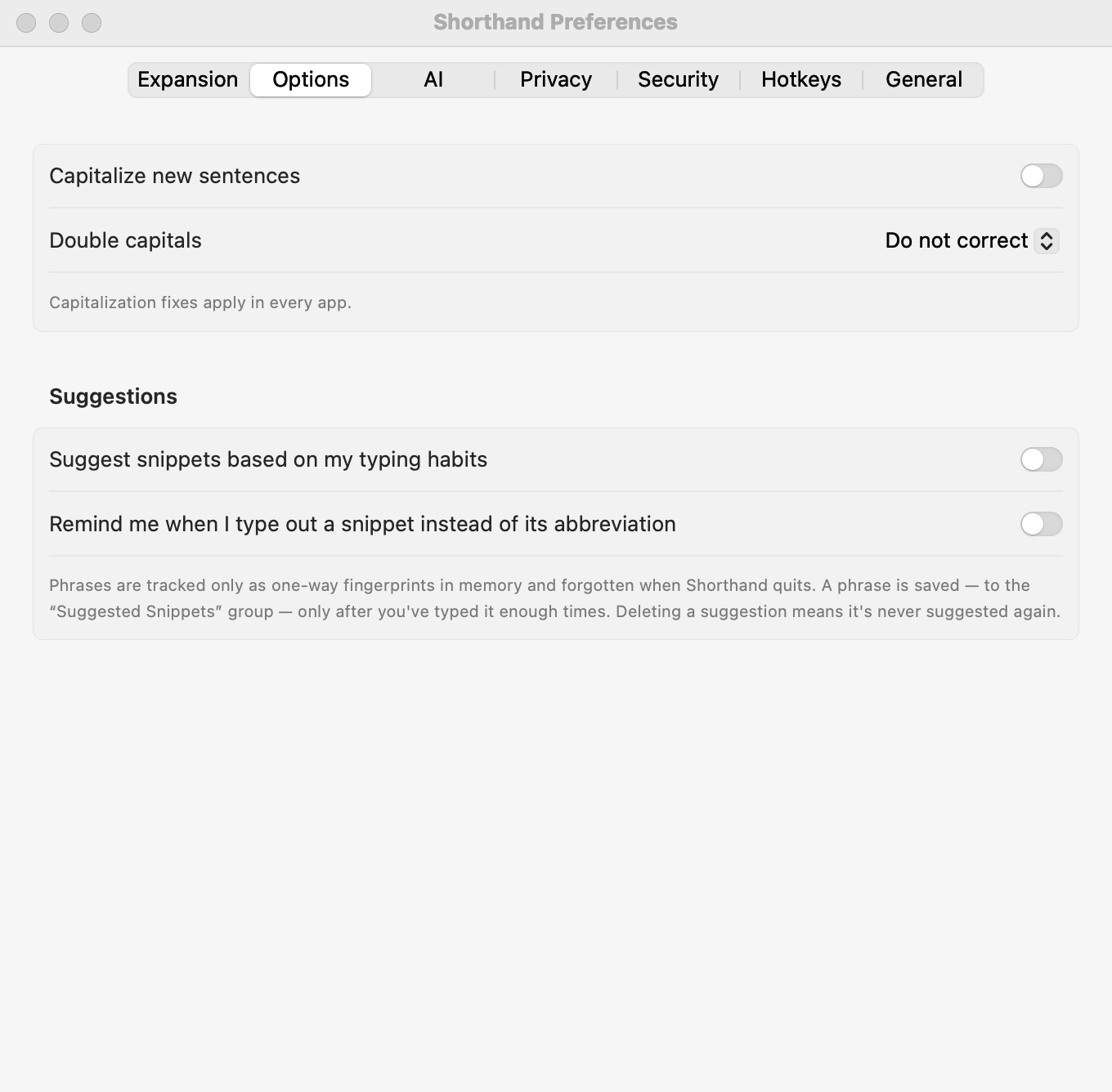
Settings ▸ Options.
Capitalize new sentences: “. hello” becomes “. Hello”.
Double capitals: fixes “THe” to “The”: Do not correct, Eliminate at sentence start, or Eliminate at word start.
Related: Snippets & Groups · Per-App Snippets · One snippet doesn’t expand